You decide everything. The “all-in-one tool” is Triggers
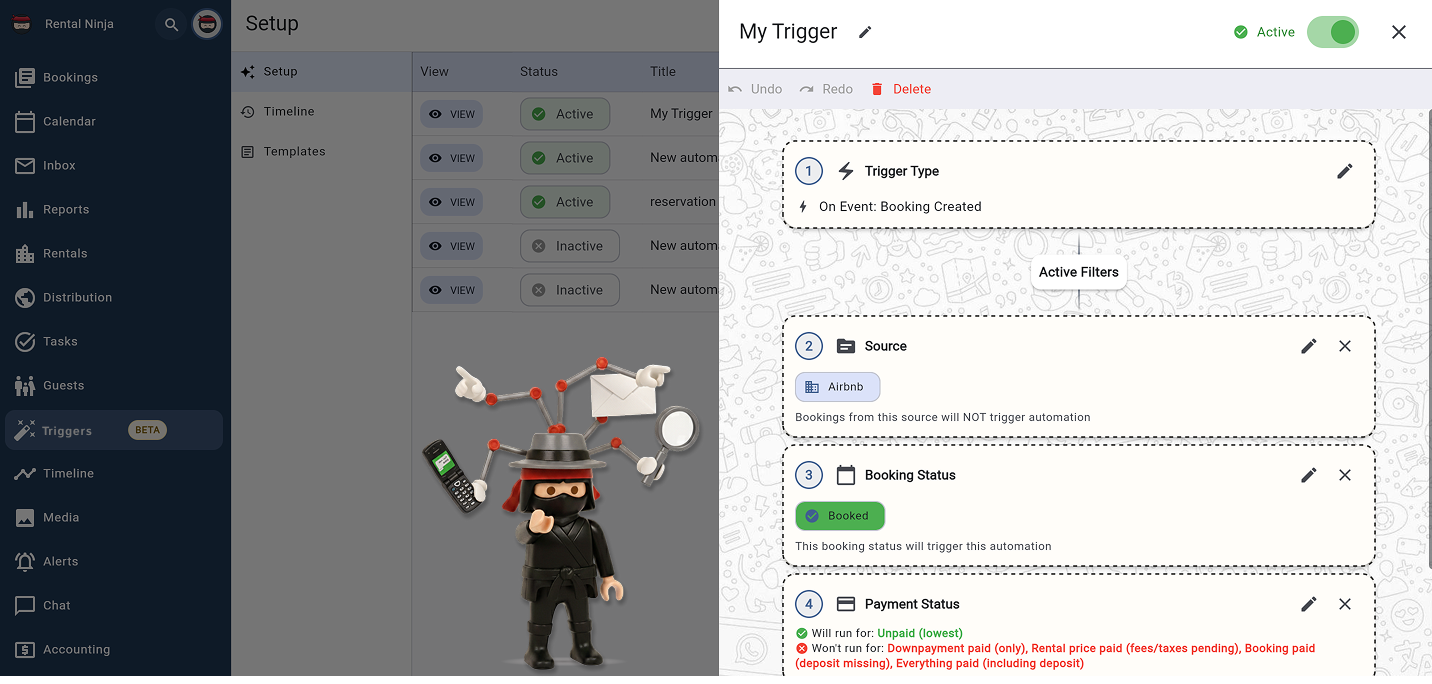
Starting to automate your operations is very simple. Our Triggers section is designed for ease of use and guides you step-by-step to create efficient workflows. To get started, simply navigate to the new 'Triggers' section within Rental Ninja. Now you have the possibility to simply define what you decide: When X happens, under circumstances Y, generate a Z. This offers all the simplicity and power that this means. Let's go.
Do you manage properties or own a vacation rental and find yourself constantly dealing with an endless list of manual tasks? From sending welcome emails and payment reminders to managing cancellations and coordinating check-ins, the sheer volume of repetitive tasks can feel overwhelming.
Imagine a world where these tasks handle themselves, allowing you to focus on growing your business and delivering exceptional guest experiences.
That world is no longer a dream. At Rental Ninja, we understand the challenges of running a busy short- or mid-term rental operation.
That’s why we’re excited to introduce our new… Triggers! (still in Beta)
The Power of Rental Ninja Triggers
Starting to automate your operations is very simple. Our Triggers section is designed for ease of use and guides you step-by-step to create efficient workflows. To get started, simply navigate to the new 'Triggers' section within Rental Ninja. Now you have the possibility to simply define what you decide:
*When X happens, under circumstances Y, generate a Z.*
This offers all the simplicity and power that this means. Let's go.
Step 1: Creating Message Templates
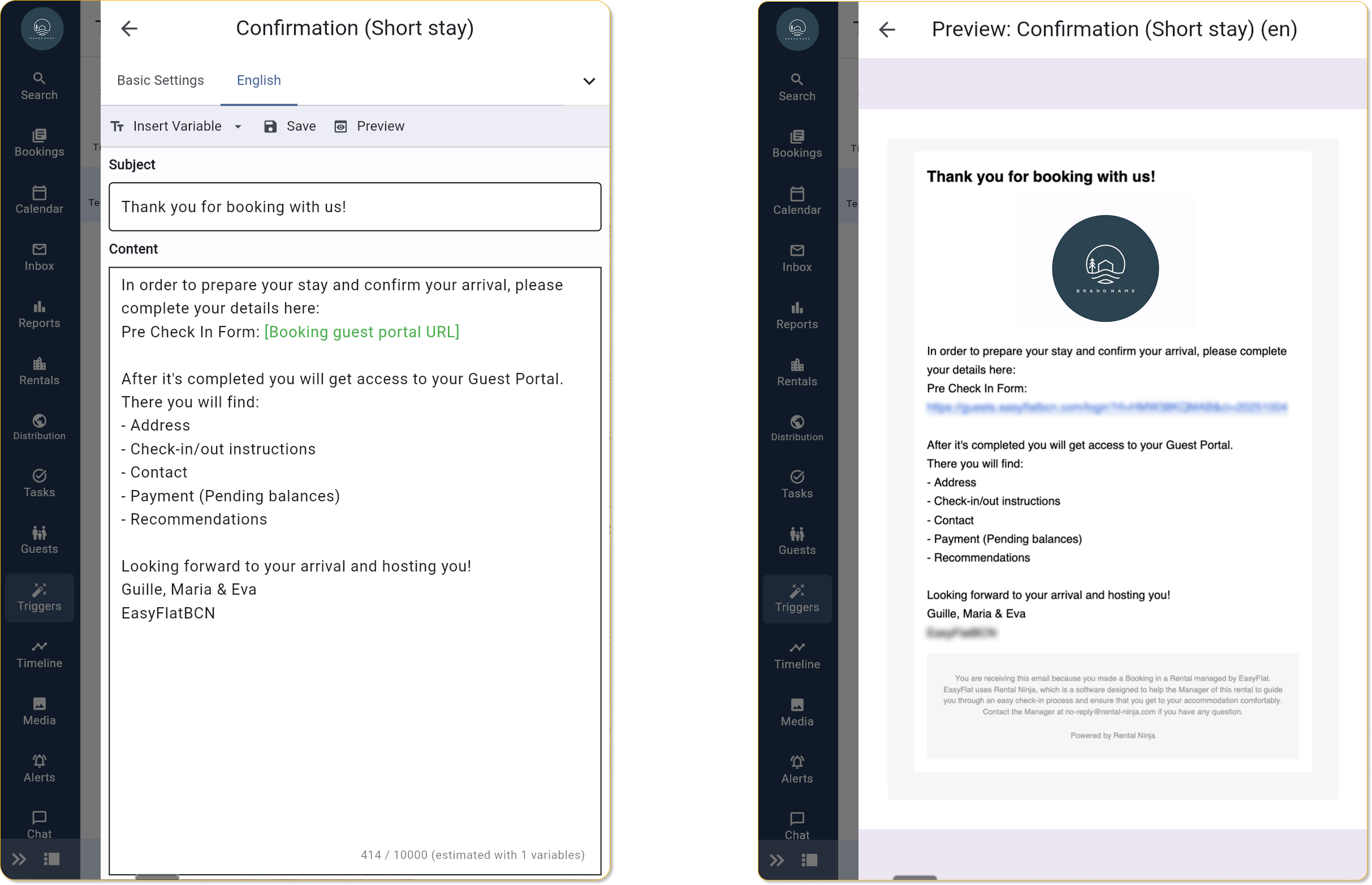
For now, almost all the actions you will perform with the tool will be messages. The basis of effective automation lies in clear, concise, and professional communication. Before configuring any automated action, it's a good idea to create the email or SMS templates that will be used. Our template creator makes it incredibly easy. You just assign an internal name to your template, select the notification type (email or SMS) , and we recommend activating the "automatic translation" feature to communicate easily with guests in their preferred language. After that, you can design your template in the default language and insert dynamic variables (such as guest name, booking dates, and property details) that will automatically populate with the correct information for each reservation. Once the templates are polished and saved, you're ready for the next step: defining your automation rules.
Step 2: Defining Automation Triggers
Think of a trigger as the "when" of your automation. What event must occur for your automated action to activate? Rental Ninja offers flexible Trigger types that adapt to various situations:
- Event: These are specific booking or payment moments, such as the creation of a new Booking, the reception of a Payment, or the cancellation of a Booking.
- OffSet: These triggers are based on a time relative to a reference date, such as X days before Check-in, X hours after Check-out, or X days after the booking creation date. This is ideal for scheduling pre-arrival information or post-stay follow-ups.
When creating a new automation, the first thing you should do is select the desired Event type. This initial selection defines the logic of your automation. For Offset Events, you can even set up multiple reminders. Imagine a welcome message 7 days before check-in and another detailed arrival guide 24 hours before!
Step 3: Precise Targeting with Filters
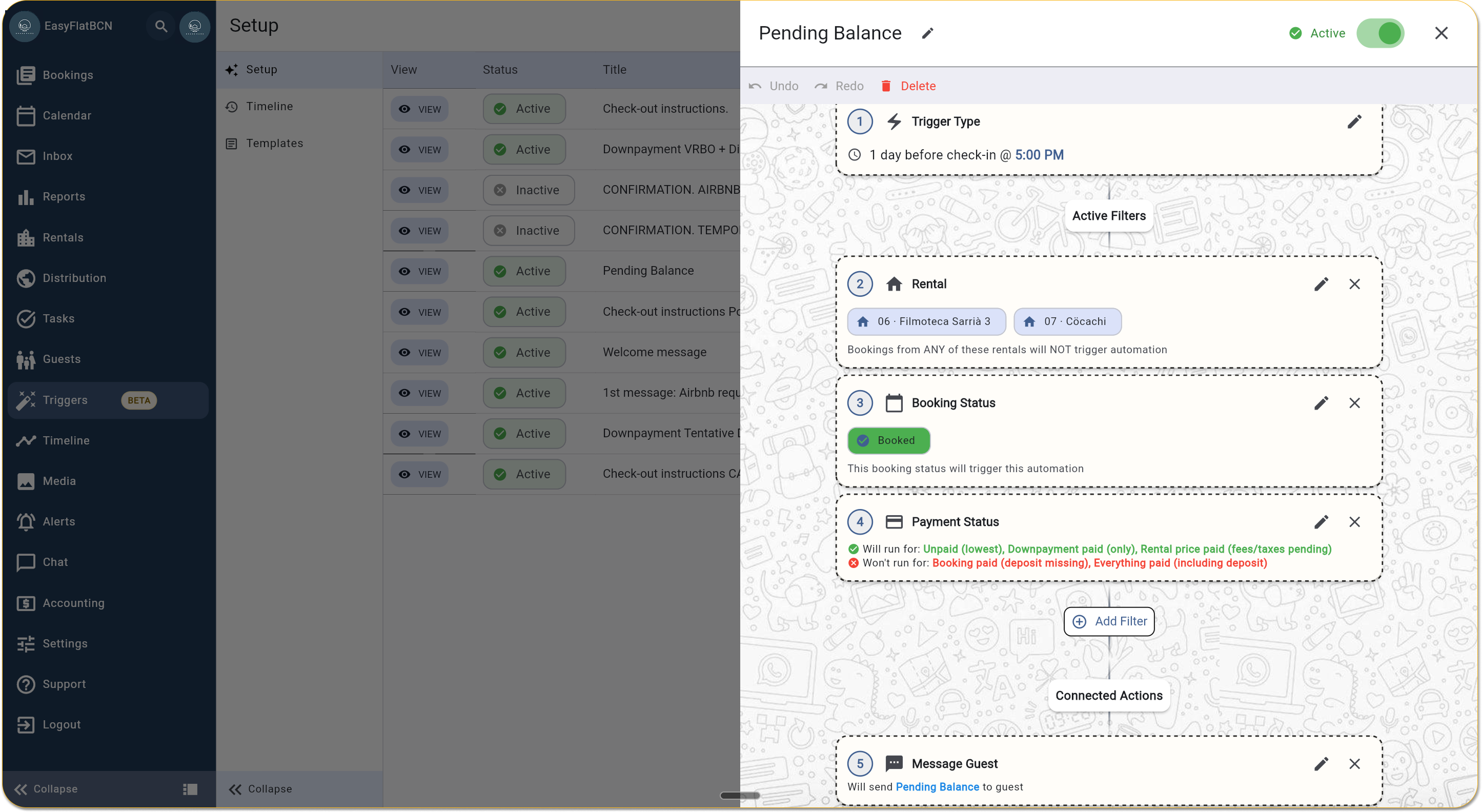
Triggers define when an automation runs, but filters define the circumstances under which they apply. This is where precision is added, ensuring that Triggers only activate for the situations we are looking for. Examples of activation with filters include:
- Booking Status: Only for "Confirmed" bookings, or perhaps "Canceled" for specific follow-up.
- Source: Only for bookings coming from Airbnb, Booking.com, or your direct website.
- Tags: If you use tags to categorize bookings (e.g., "VIP Guest," "Extended Stay," "Corporate"), you can trigger actions only for bookings with specific tags.
- Payment Status: This is crucial! Send a reminder if a deposit is missing or a final payment request if only the advance payment was collected.
- Property/Group: Target specific properties or property groups (e.g., all your city apartments versus your beach villas).
- Pre-check status: Trigger actions based on whether pre-check-in steps have been completed.
You can combine multiple filters to create very specific conditions. The effectiveness of combining filters allows you to create rules such as: "Send a welcome email 3 days before check-in, ONLY for bookings with 'Booked' status, coming from Airbnb and tagged as 'New Guest'." This level of detail minimizes errors and maximizes relevance.
Step 4: Configuring Your Automated Actions
Once the Trigger is defined and the Filters are refined, the final step is to decide what Action Rental Ninja should take. This is the "what" of your automation. Our Triggers Beta version supports several powerful actions:
- Cancel Booking: Automatically cancel bookings that meet certain criteria (e.g., unpaid after a grace period).
- Send SMS to Guest: Deliver critical information directly to your guests' phones.
- Send Email: This is where your pre-designed templates come into play! You can choose to send emails for:
- Guest Communication: Messages sent to the guest's primary email address (or through the booking platform's forum if a direct email is not available, such as for Airbnb or Booking.com).
- Internal Notifications: Send emails to your own team members, specific email addresses, or a group of staff members to receive alerts (e.g., "New booking received," "Maintenance alert for property X").
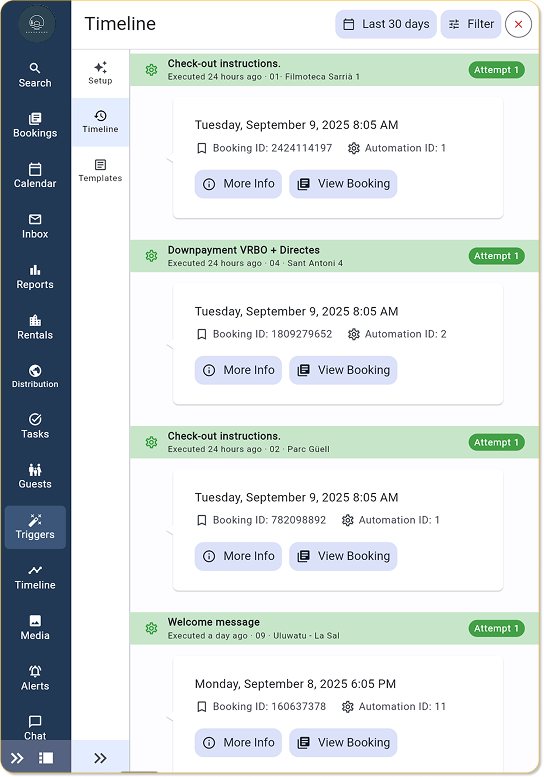
Once the automation is configured, just activate it! You can also monitor the performance and history of your Triggers in the timeline, which allows you to see exactly when messages were sent and if any problems occurred. You can even view the sent emails directly in the booking forum.
Practical Conclusions: Automate Your Business
Imagine the possibilities with Rental Ninja Triggers:
- Automated welcome packages: Send detailed arrival instructions and local recommendations exactly 24 hours before check-in.
- Continuous payment reminders: Automatically prompt guests to pay outstanding balances or security deposits.
- Effortless review requests: Send a friendly reminder to leave a review one day after payment is made.
- Internal alerts: Notify your cleaning team immediately when a booking is confirmed or canceled.
- Dynamic pricing adjustments: Use Triggers to react to market changes (coming soon!).
- Guest feedback surveys: Automatically send surveys after their stay to collect valuable information.
By leveraging Rental Ninja's Triggers beta version, you will benefit from:
- Significant time savings: Regain hours you previously spent on repetitive tasks.
- Reduced errors: Eliminate human error in communication and task execution.
- Improved guest experience: Ensure timely and relevant communication, improving satisfaction.
- Increased operational efficiency: Optimize workflows for your entire team.
- Consistent branding: Convey professional, on-brand messages at all times.
Shall we automate?
The future of efficient property management is already here. Don’t let manual tasks limit your business. The Beta version of Rental Ninja Triggers is your secret weapon for a more organized, efficient, and profitable rental operation.
Log in to Rental Ninja today and explore the Triggers section.
Start building your first automated workflow and experience the transformation firsthand!